# Reveal lists

When revealing aspects of a Prefab each property, method or component is revealed as part of a "reveal list".

**Reveal lists** can be used to customise how a locked Prefab looks to different members on the team, or even to the same person, while they are performing different tasks.

<figure><img src="https://3055962393-files.gitbook.io/~/files/v0/b/gitbook-x-prod.appspot.com/o/spaces%2FzOOVmLdEeVhfPmrcckJe%2Fuploads%2FgeLdcSGL8l2l6BkYaon5%2FListsCompared.png?alt=media&#x26;token=f23c4e14-140a-4c24-9802-31452eced016" alt="" width="563"><figcaption><p>The same BlackBox Prefab can look very different depending on the list selected</p></figcaption></figure>

For example:

* On a "Game Manager" Prefab, programmers can create a reveal list that exposes almost everything on the GameManager component, while everyone else on the team sees the Prefab as a complete black box.
* On a player Prefab, you can have a list that exposes **Speed** and **JumpHeight** properties on a character controller script to tweak its movements, and one that exposes only **Health** and **AttackPower** for when you are working on combat.

Each BlackBox component can contain up to 10 lists of revealed items.

### Switch the active list

To move between lists, simply click on the buttons that show up in the BlackBox Inspector.

<figure><img src="https://3055962393-files.gitbook.io/~/files/v0/b/gitbook-x-prod.appspot.com/o/spaces%2FzOOVmLdEeVhfPmrcckJe%2Fuploads%2F7oS6Ytx8VN4yQm7q2XKO%2FListButtons.png?alt=media&#x26;token=27794310-98bf-42f7-a805-d19c9974ac63" alt="" width="563"><figcaption><p>Three lists are visible, and the first is currently selected</p></figcaption></figure>

{% hint style="info" %}
You will not see any button if there is only one visible list.
{% endhint %}

### Add and remove items

Adding items to lists is done by clicking the **Show Available Properties and Methods** button in the Inspector of the BlackBox component, or by performing one of the actions described in the [Properties](https://tools.continis.io/black-box/main-features/reveal/properties), [Methods](https://tools.continis.io/black-box/main-features/reveal/methods) or [Components](https://tools.continis.io/black-box/main-features/reveal/entire-components) pages.

Removing items is simply done by clicking the **- (minus)** button next to a list item, while in Prefab mode.

### Edit lists

In addition to the elements they contain, lists have different properties.

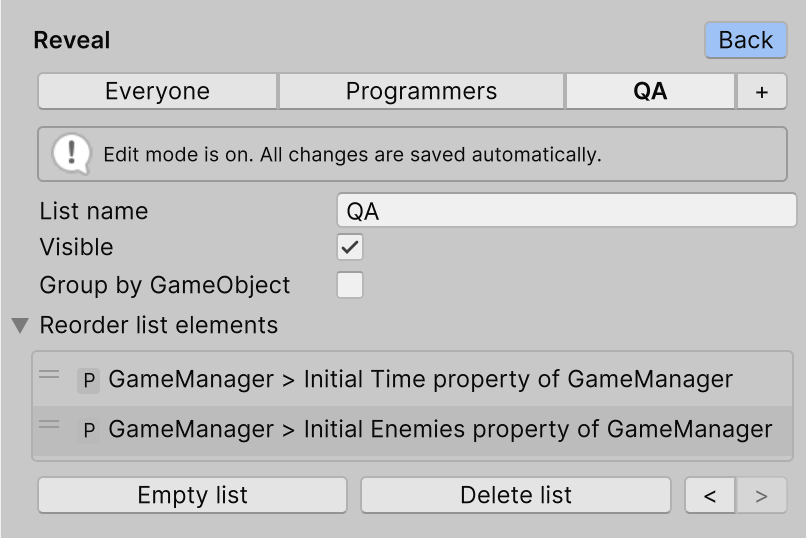
To edit the properties of a list (including its name), open the BlackBox Prefab and click on the **Edit Lists** button. This enters edit mode.

<figure><img src="https://3055962393-files.gitbook.io/~/files/v0/b/gitbook-x-prod.appspot.com/o/spaces%2FzOOVmLdEeVhfPmrcckJe%2Fuploads%2FDT9ik3qnZTYbnaJyymbJ%2FEditMode.png?alt=media&#x26;token=886cec19-6296-468b-975f-1cc1523c2c22" alt="" width="563"><figcaption><p>Lists edit mode</p></figcaption></figure>

While in edit mode, you can edit:

<table><thead><tr><th width="230.19140625" valign="top">Property / Button</th><th valign="top">Function</th></tr></thead><tbody><tr><td valign="top"><strong>Name</strong></td><td valign="top">This is the name that displays on the list buttons.</td></tr><tr><td valign="top"><strong>Visible</strong></td><td valign="top">Controls the list's visibility. If set to off, a button will not be displayed for this list, and the list will not be selectable once out of edit mode.</td></tr><tr><td valign="top"><strong>Group by GameObject</strong></td><td valign="top">If this option is enabled, when the list is laid out it will group its elements by the GameObject they belong to.</td></tr><tr><td valign="top"><strong>Reorder list elements</strong></td><td valign="top">Allows to reorder the elements of a Reveal list. Simply drag them up and down to change the order in which they will appear.</td></tr><tr><td valign="top"><strong>Empty list</strong></td><td valign="top">Clears all the revealed items in a list, without deleting the list itself.</td></tr><tr><td valign="top"><strong>Delete list</strong></td><td valign="top">Removes the list entirely.</td></tr><tr><td valign="top"><strong>Arrow buttons</strong></td><td valign="top">These buttons allow to reorder the lists themselves.</td></tr></tbody></table>

{% hint style="info" %}
**Reordering, and Group by GameObject**

When a list is set to group revealed items by GameObject, it might seem to you that the pure order of the elements is not respected. This is because elements are listed by GameObjects first, and then in the order specified.

So for instance, the last element in the list might not show up as last, if another element from the same GameObject is further up in the list.

To achieve exactly the order you want, you need to turn **Group by GameObject** of&#x66;**.**
{% endhint %}